

Compressed Images for MaxDiff Exercise? | Experience Community
Skip to main content
Question

Compressed Images for MaxDiff Exercise?

  • September 2, 2026
  • 1 reply
  • 79 views

I’m using a Qualtrics MaxDiff template with two scale anchors and my product descriptions (saved as JPG files) are sandwiched between those scale anchors. 

Unfortunately Qualtrics has compressed those images to make them fit between the scale anchors and that makes the product descriptions impossible to read. 

Is there a way to temporarily enlarge the text for these product descriptions when a survey participant hovers over the image that’s sandwiched between the scale anchors?  I would welcome any tips or tricks to solve this problem.  Thanks!      

       

1 reply

Forum|alt.badge.img

Hello ​@crlivingston,

As you likely know, Qualtrics does not provide a documented hover-to-enlarge option for graphics in answer choices. However, you can make the descriptions readable using these alternatives:


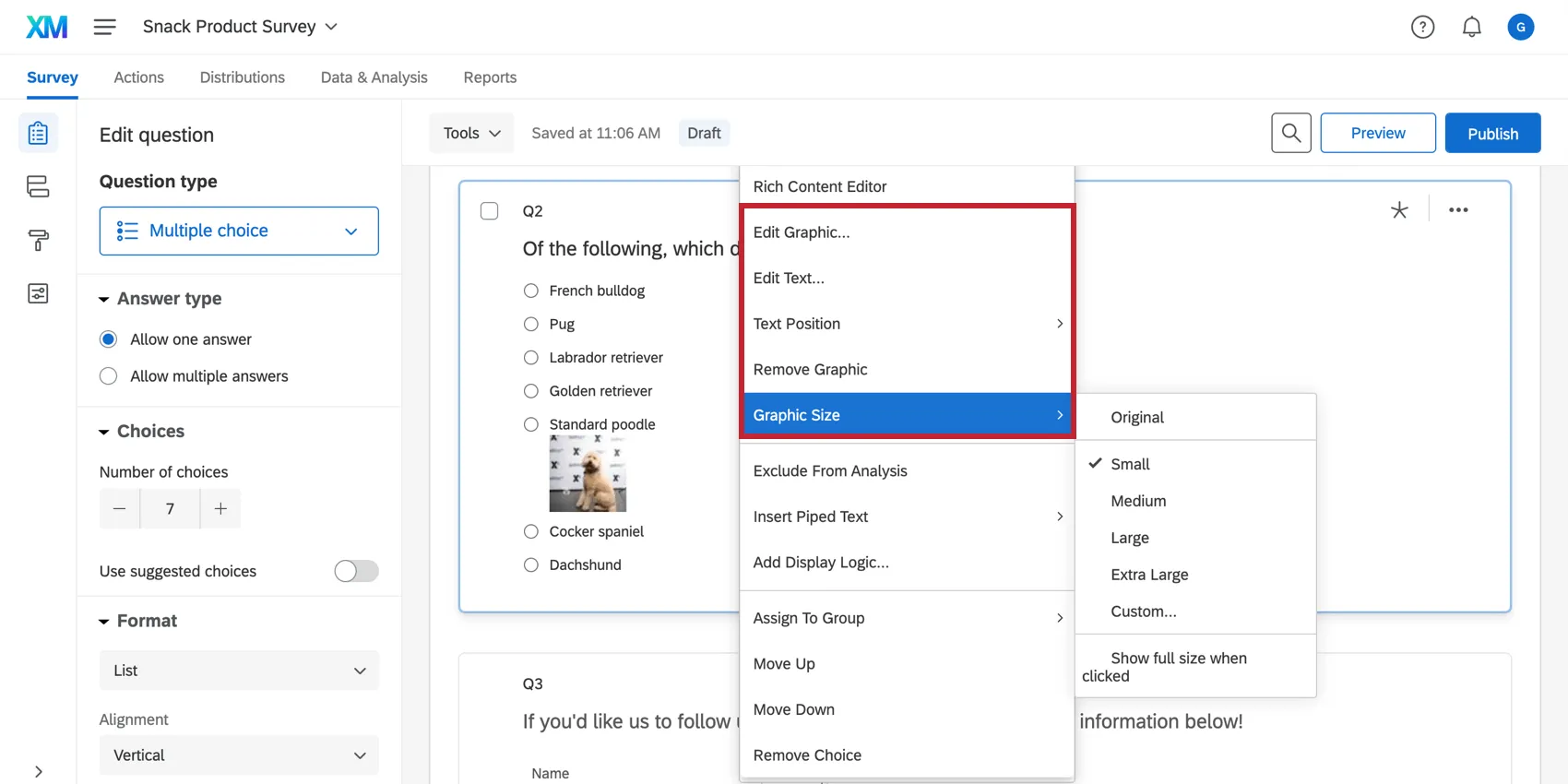
1. Enable “Show full size when clicked”

If the product descriptions are inserted as graphics in the MaxDiff answer choices:

  1. Open the answer choice’s graphic options.
  2. Select Graphic Size.
  3. Choose Custom or an appropriate preset size.
  4. Enable Show full size when clicked.

This keeps the image compact between the scale anchors, but allows respondents to click it and view the original-size image.

Graphic Size options


2. Resize the source image before uploading

Create a higher-resolution version of each JPG with larger text, then upload it again. Qualtrics recommends keeping images below 1 MB and generally using images no wider than 770 px. PNG files may also produce clearer text than JPG files, especially for text-heavy graphics.


3. Adjust the graphic size in the answer choice

If the graphic is inserted directly into an answer choice, use Graphic Size → Custom to give it more space. Be aware that increasing the displayed image size may affect the MaxDiff layout and could make the scale anchors or other choices harder to view.


4. If the image was inserted through the Rich Content Editor

Right-click the image, select Image Properties, and adjust its width and height. This is useful when the graphic is part of the question content rather than an answer-choice graphic.


A true hover-based enlargement would generally require custom CSS or JavaScript, and custom behavior can be especially sensitive in MaxDiff templates and across mobile devices. The most reliable built-in solution is therefore to use Show full size when clicked and provide a high-resolution image.