


How to present stimuli files randomly to participants?


Best answer by Akdashboard
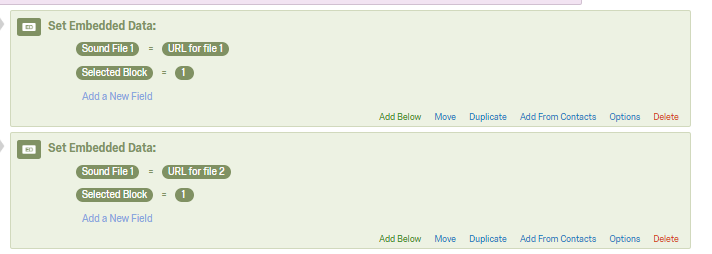 Next, you will need to create 3 randomizer blocks with 25, 35, and 40 embedded data elements nested under the 3 blocks respectively. For "Randomly Present [] of the following elements" set [] to "1". Within each block, set "Block Selected" to either 1, 2, or 3 depending on which randomizer the block is nested under . The image example i use only has 2 embedded data elements for simplicity.
!
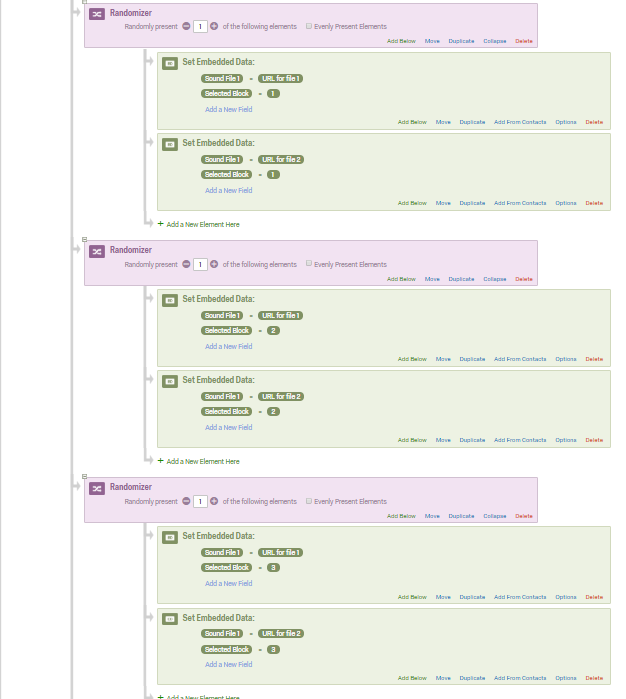
Next, you will need to create 3 randomizer blocks with 25, 35, and 40 embedded data elements nested under the 3 blocks respectively. For "Randomly Present [] of the following elements" set [] to "1". Within each block, set "Block Selected" to either 1, 2, or 3 depending on which randomizer the block is nested under . The image example i use only has 2 embedded data elements for simplicity.
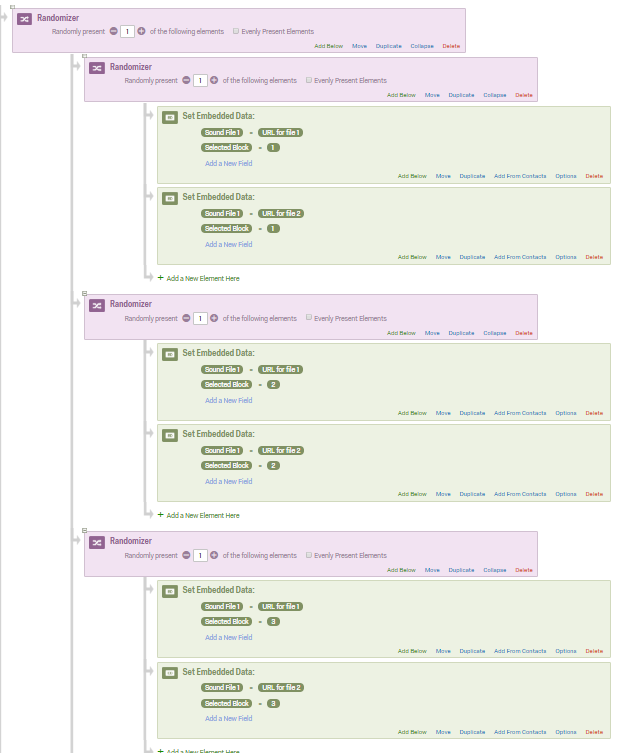
! Next, you need to create a fourth randomizer block and nest the 3 randomizers under it. Set this block to randomly present "1" elements also. This will present 1 of the next tier of elements of nested this elements, i.e. 1 of the 3 randomizer, which in turn will randomly generate 1 the nested embedded data elements.
!!
Next, you need to create a fourth randomizer block and nest the 3 randomizers under it. Set this block to randomly present "1" elements also. This will present 1 of the next tier of elements of nested this elements, i.e. 1 of the 3 randomizer, which in turn will randomly generate 1 the nested embedded data elements.
!! Next, duplicate all these blocks by selecting "duplicate" from the top tiered randomizer block. Then change the embedded data field "Sound File 1" to "Sound File 2".
You can skip this next part if you don't care if the respondent receives 2 files from the same block (i.e. 2 sound files from the list of 25)
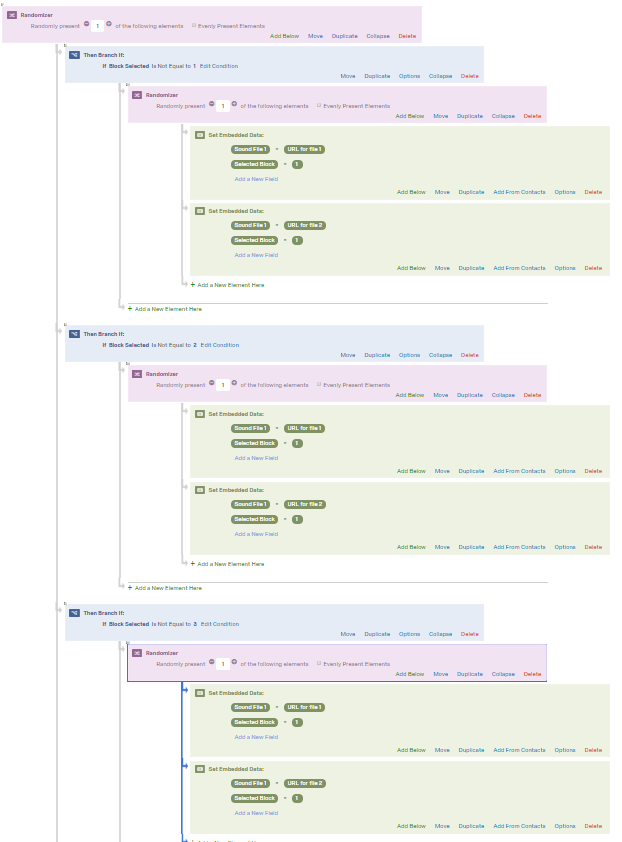
Above each nested randomizer, add a branch block and use this logic: Branch if Embedded Data IS NOT EQUAL to Block 1 | Repeat for blocks 2 and 3.
!
Next, duplicate all these blocks by selecting "duplicate" from the top tiered randomizer block. Then change the embedded data field "Sound File 1" to "Sound File 2".
You can skip this next part if you don't care if the respondent receives 2 files from the same block (i.e. 2 sound files from the list of 25)
Above each nested randomizer, add a branch block and use this logic: Branch if Embedded Data IS NOT EQUAL to Block 1 | Repeat for blocks 2 and 3.
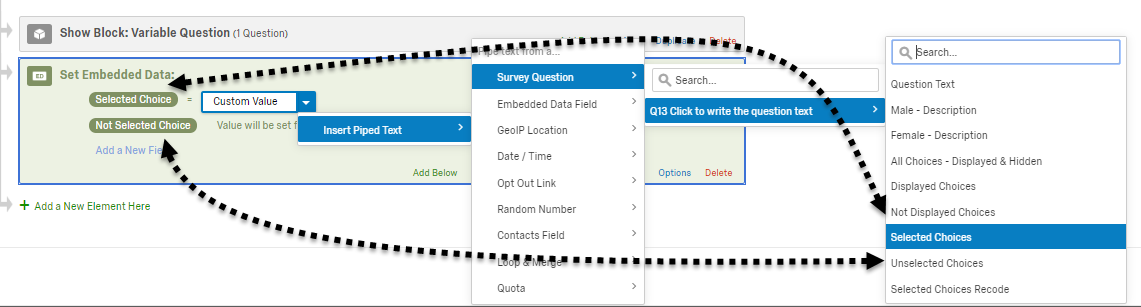
! Lastly in the Survey flow, set an embedded data element under you survey question block with 2 fields: Selected Choice and Note Selected Choice and set each value to be equal to the survey question "Selected Choices" and "Unselected Choices" respectfully.
!
Lastly in the Survey flow, set an embedded data element under you survey question block with 2 fields: Selected Choice and Note Selected Choice and set each value to be equal to the survey question "Selected Choices" and "Unselected Choices" respectfully.
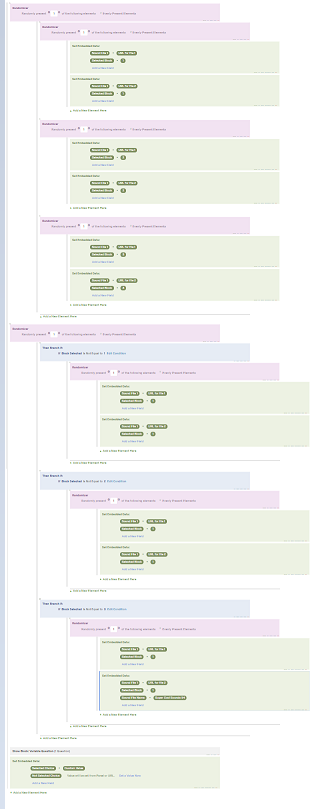
! The entire flow will look like this but with WAY more embedded data elements.
!
The entire flow will look like this but with WAY more embedded data elements.
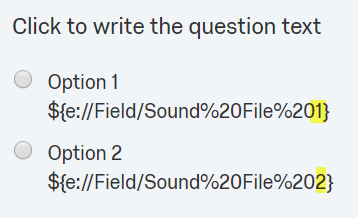
! FINALLY, use piped text to pipe in the randomly selected sound files to your survey question. Note that "%20" just means a space exists.
!
FINALLY, use piped text to pipe in the randomly selected sound files to your survey question. Note that "%20" just means a space exists.
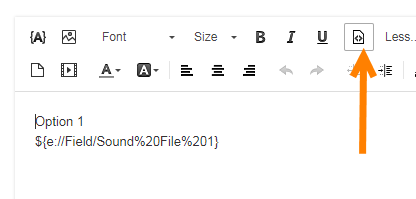
! FINALLY FINALLY - You may need to tweak the html in order for the sound file to actually appear. To do this, go to the Rich Content editor for your choice selection and click the "source" button.
!
FINALLY FINALLY - You may need to tweak the html in order for the sound file to actually appear. To do this, go to the Rich Content editor for your choice selection and click the "source" button.
! The goal here is to use piped text to pipe in the randomly selected sound file without needing to build a ton of questions. Where the URL would ordinarily be, just copy and paste the piped text logic. - I don't have a picture because I don't know how you set up your question and I don't want to confuse you further.
HOW TO INTERPRET YOUR DATA
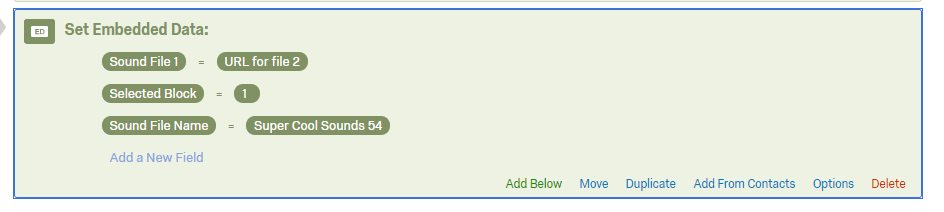
Selected Choice and Not Selected Choice will say either OPTION 1 or OPTION 2. OPTION 1 equates to Sound File 1 and OPTION 2 equates to Sound File 2. So, if Selected Choice is equal to Option 2, that means they selected Sound File 2 over Sound File 1... both will have the URL for the sound file you included. To make life easier, you may want to add a third embedded data element alongside Sound File 1/2 and Select Block 1/2/3 called "File Name 1" and "File Name 2" (respectively) with a more user-friendly name for the sound files.
See my image as an example. Sorry, I am not fixing all my above images as this isn't _strictly_ necessary, it will just make you life A LOT easier.
!
The goal here is to use piped text to pipe in the randomly selected sound file without needing to build a ton of questions. Where the URL would ordinarily be, just copy and paste the piped text logic. - I don't have a picture because I don't know how you set up your question and I don't want to confuse you further.
HOW TO INTERPRET YOUR DATA
Selected Choice and Not Selected Choice will say either OPTION 1 or OPTION 2. OPTION 1 equates to Sound File 1 and OPTION 2 equates to Sound File 2. So, if Selected Choice is equal to Option 2, that means they selected Sound File 2 over Sound File 1... both will have the URL for the sound file you included. To make life easier, you may want to add a third embedded data element alongside Sound File 1/2 and Select Block 1/2/3 called "File Name 1" and "File Name 2" (respectively) with a more user-friendly name for the sound files.
See my image as an example. Sorry, I am not fixing all my above images as this isn't _strictly_ necessary, it will just make you life A LOT easier.
!




Sign up
Already have an account? Login

Welcome! To join the Qualtrics Experience Community, log in with your existing Qualtrics credentials below.
Confirm your username, share a bit about yourself, then you're ready to explore and connect .
Free trial account? No problem. Log in with your trial credentials to join.
No free trial account? No problem! Register here
Already a member? Hi and welcome back! We're glad you're here 🙂
You will see the Qualtrics login page briefly before being taken to the Experience Community.
Login with Qualtrics
Welcome! To join the Qualtrics Experience Community, log in with your existing Qualtrics credentials below.
Confirm your username, share a bit about yourself, then you're ready to explore and connect .
Free trial account? No problem. Log in with your trial credentials to join. No free trial account? No problem! Register here
Already a member? Hi and welcome back! We're glad you're here 🙂
You will see the Qualtrics login page briefly before being taken to the Experience Community.
Login to the Community
No account yet? Create an account
Welcome! To join the Qualtrics Experience Community, log in with your existing Qualtrics credentials below.
Confirm your username, share a bit about yourself, then you're ready to explore and connect .
Free trial account? No problem. Log in with your trial credentials to join.
No free trial account? No problem! Register here
Already a member? Hi and welcome back! We're glad you're here 🙂
You will see the Qualtrics login page briefly before being taken to the Experience Community.
Login with Qualtrics
Welcome! To join the Qualtrics Experience Community, log in with your existing Qualtrics credentials below.
Confirm your username, share a bit about yourself, then you're ready to explore and connect .
Free trial account? No problem. Log in with your trial credentials to join. No free trial account? No problem! Register here
Already a member? Hi and welcome back! We're glad you're here 🙂
You will see the Qualtrics login page briefly before being taken to the Experience Community.
Enter your E-mail address. We'll send you an e-mail with instructions to reset your password.