



Display change between variables similar to "Relate" in StatsIQ or a Sankey diagram on a CX Dashboard | Experience Community
Skip to main content
Question

Display change between variables similar to "Relate" in StatsIQ or a Sankey diagram on a CX Dashboard

  • August 26, 2026
  • 1 reply
  • 61 views

Forum|alt.badge.img+3

Hello!

I have a survey which asks for the participants impression of a brand before and after an event.

In StatsIQ I can look at these two factors and see the change between their answers before and after.

I want to put this on a CX Dashboard for stakeholders to view. Having the analysis within StatsIQ on the dashboard is not a suitable solution - people wont look in there or understand the tool.

What is the best way to visualise this information on a CX Dashboard?

1 reply

Forum|alt.badge.img

Hello! The best approach is to recreate the key Stats iQ finding as a dashboard visualization, rather than trying to display the Stats iQ analysis itself. Stats iQ results cannot be directly exported or mapped into a CX Dashboard.


Recommended approach
 

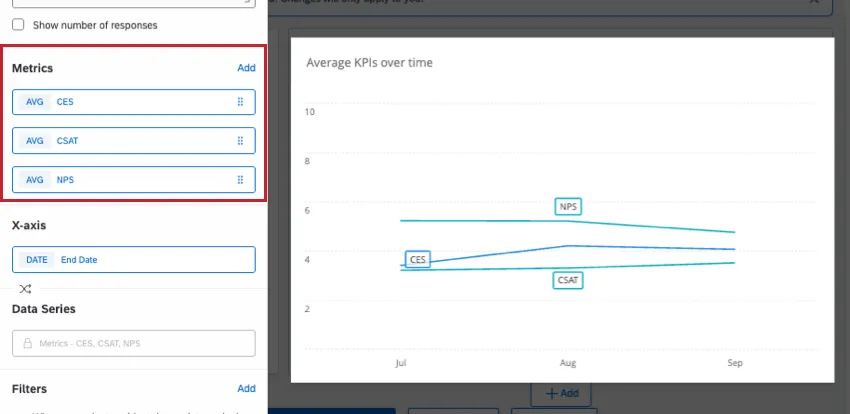
1. Show the before-and-after scores in a line chart

If the “before” and “after” responses are numeric ratings, use a line chart with:

  • X-axis: Before event, After event
  • Metric: Average brand-impression score
  • Optional: Add confidence intervals or response counts, if available

This gives stakeholders an immediate view of whether brand perception improved or declined.

Line chart showing multiple metrics over time

A bar chart is also a good option if you want to emphasize the difference between the two points rather than show a trend.
 

2. Add a separate “change” metric

If stakeholders need to see the actual improvement or decline, calculate a respondent-level change value:

After-event score − Before-event score

You can save this value as an embedded data field in the survey flow, or include it as a prepared field in imported data. Then map it to the dashboard and display it using:

  • A Number Chart for the average change
  • A Bar Chart to compare change across segments
  • A Table showing change by region, demographic, audience, or other attribute

Saving the value as embedded data allows it to be mapped into the dashboard.
 

3. Include segment comparisons

To make the dashboard actionable, duplicate the visualization or add filters for relevant groups, such as:

  • Event attendance type
  • Customer segment
  • Region
  • Demographic group
  • Pre-event brand perception level
     

Suggested stakeholder layout

  1. Number Chart: Average change in brand impression
  2. Line or Bar Chart: Before versus after score
  3. Bar Chart: Change by key segment
  4. Response Ticker: Verbatim comments explaining why perceptions changed


This presents both the size of the change and the feedback behind it, without requiring stakeholders to use Stats iQ.

One important consideration: if the two questions are separate fields in the same survey, a standard dashboard chart will generally aggregate the before and after fields independently. If you need to reproduce the exact paired-respondent change from Stats iQ, create and map a dedicated change field rather than relying only on the two original question fields.