Gauge chart range display on hover in CX dashboard | XM Community
Skip to main content
Answer

Gauge chart range display on hover in CX dashboard

  • November 18, 2025
  • 8 replies
  • 51 views

Forum|alt.badge.img+4

In a gauge chart, i want to set colour showing 1 to 2.7 as red, 2.8 to 3.7 as yellow,3.8 to 5 as green.

The challenge is in display it lets you give min, max and < values. And that value is used to set the upper limit of red and lower limit of yellow, etc.

Can we do anything so that we get the values as desired ?

Best answer by vgayraud

Hi ​@Neha Tank 

It’s not possible to achieve what you want with the existing widget. I’ve had similar requests from clients, they settled either for adding a note in the widget’s description or adding a text widget by the gauge to clarify.

Other than that, you’d have to create your own plugin or reach out to Qualtrics engineering services.


8 replies

UXDana
Level 2 ●●
Forum|alt.badge.img+4
  • Level 2 ●●
  • November 21, 2025

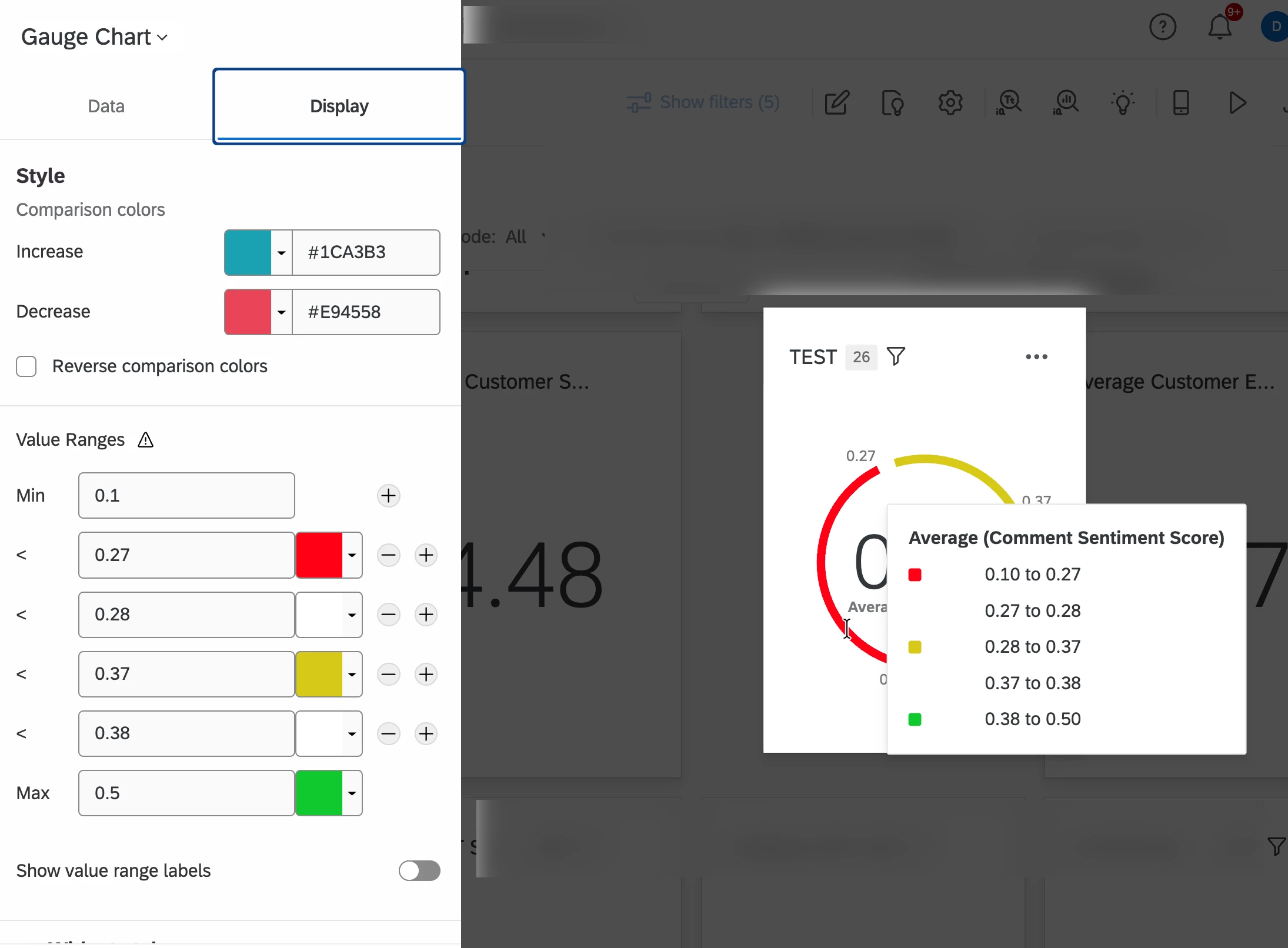
@Neha Tank This may not be as clean but you could add values between and use white as the color for those (between 2.7 and 2.8). See attached example. I didn’t have data to match so my decimal points are in a different spot than your example you provided. 


Forum|alt.badge.img+4
  • Author
  • Level 4 ●●●●
  • November 24, 2025

@UXDana , thanks for the suggestion. The only problem is in tool tip it would show the ones in between too (the white ones) and that might confuse the users.


Gunjan_Malhotra
Level 2 ●●
Forum|alt.badge.img+2

You can approximate your ranges by entering the upper boundary of each color:

  • Set Min = 1

  • Set Max = 5

  • Set first threshold (“< value” for red → yellow) = 2.7

  • Set second threshold (“< value” for yellow → green) = 3.7

Qualtrics will automatically color:

  • 1 to 2.7 = red

  • 2.7 to 3.7 = yellow

  • 3.7 to 5 = green


Forum|alt.badge.img+4
  • Author
  • Level 4 ●●●●
  • December 8, 2025

@Gunjan_Malhotra , thanks for the response.

My challenge is that user gets confused when they see the tool tip : 2.7 not knowing if it is included in RED or YELLOW.

So we want to set it in such a way that 2.7 is shown in only RED and not in YELLOW tool tip.


Gunjan_Malhotra
Level 2 ●●
Forum|alt.badge.img+2

@Neha Tank 
try these ranges :
 

  • Min = 1

  • Max = 5

  • Red → Yellow threshold = 2.71 (instead of 2.7)

  • Yellow → Green threshold = 3.81 (instead of 3.8)

This will visually display the ranges as:

  • 1 – 2.7 → Red

  • 2.8 – 3.7 → Yellow

  • 3.8 – 5 → Green

And the tooltip will now clearly show:

  • 2.7 in Red

  • 2.8 in Yellow

  • 3.8 in Green


Forum|alt.badge.img+4
  • Author
  • Level 4 ●●●●
  • December 8, 2025

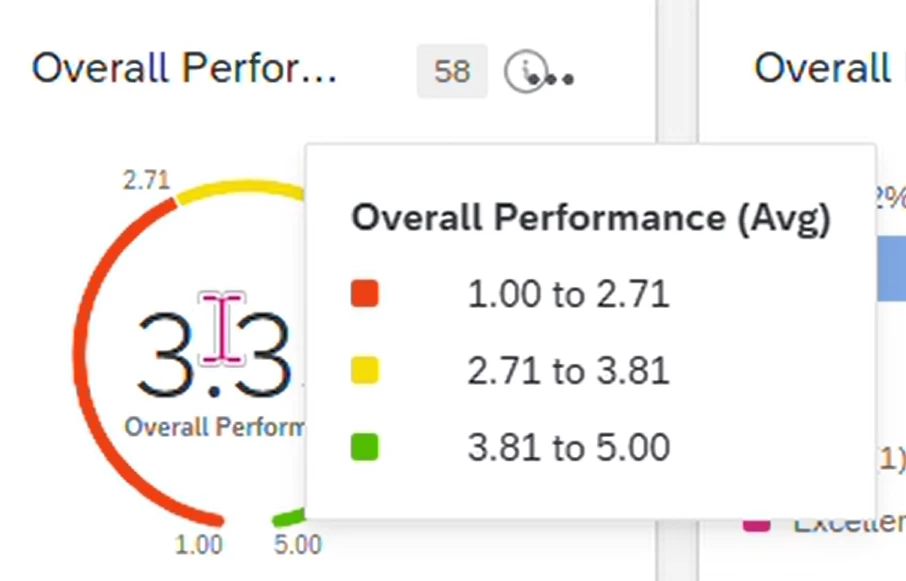
@Gunjan_Malhotra , It still shows as below:


I had tried this earlier with multiple decimal places with no change.


vgayraud
QPN Level 6 ●●●●●●
Forum|alt.badge.img+59
  • QPN Level 6 ●●●●●●
  • Answer
  • December 8, 2025

Hi ​@Neha Tank 

It’s not possible to achieve what you want with the existing widget. I’ve had similar requests from clients, they settled either for adding a note in the widget’s description or adding a text widget by the gauge to clarify.

Other than that, you’d have to create your own plugin or reach out to Qualtrics engineering services.



Forum|alt.badge.img+4
  • Author
  • Level 4 ●●●●
  • December 8, 2025

@vgayraud , I guess so too. Probably something for Qualtrics to think and implement it :)

Appreciate all of your support.

Closing the thread