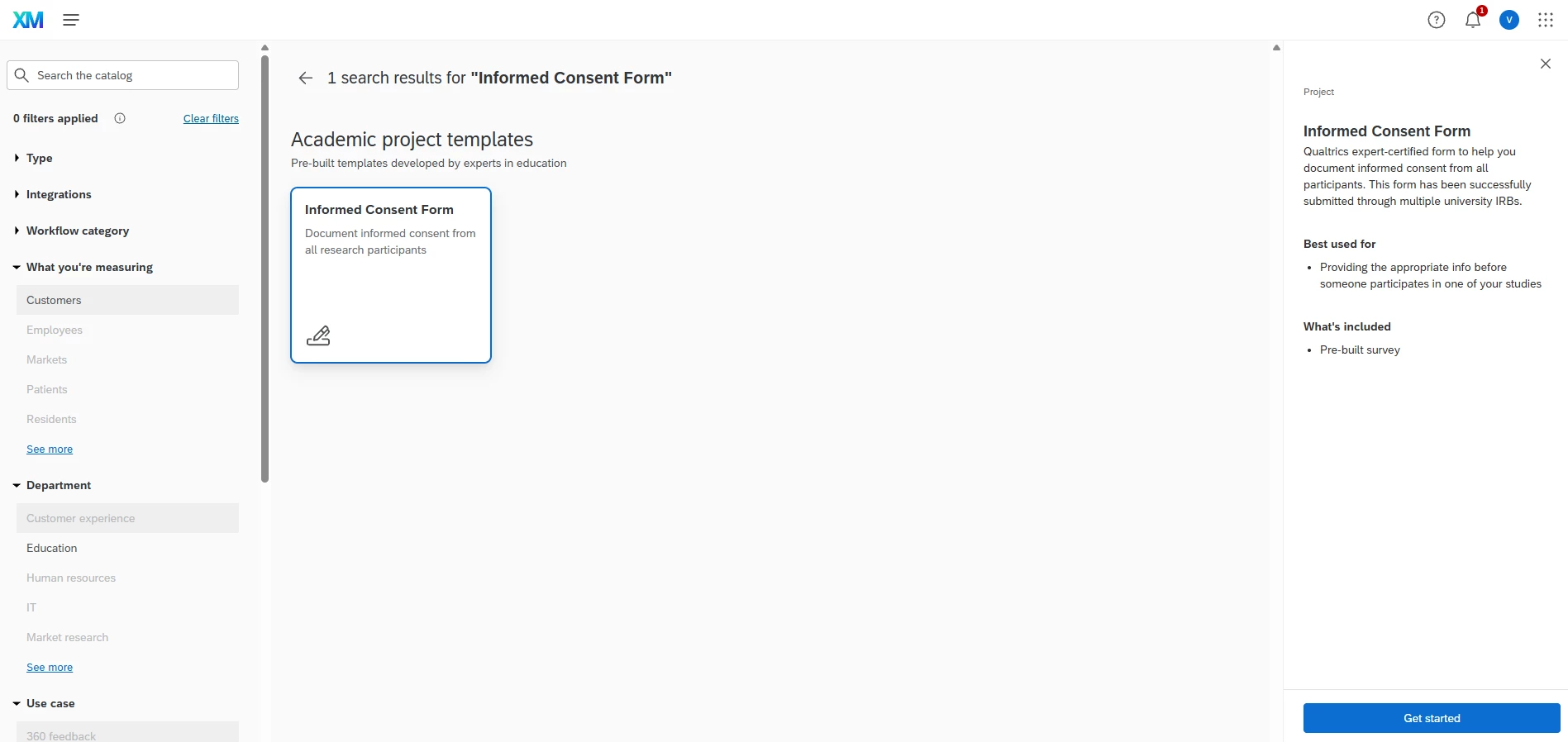
Hi, I am trying to create a link or QR code that I can send or post to volunteer participants for my research project. I am new to all this technology and really could use some simple step-by-step instructions on how to create and upload those documents, first my consent form, which will open up first thing, with the 5 questions for demographic context only attached with it, so participants can easily sign the consent form, answer the questions, then have it returned to me.
Can anyone provide me with a step-by-step, simple process without all the technical jargon?
Thank you
Faye
Best answer by gPandey_715
Hi Faye,
Yes, this can be done quite easily in Qualtrics.
Step 1: Create a New Survey
Create Survey Project and give it a name.
Step 2: Add Your Consent Form
Add the text of your consent form as the first question (using a Descriptive Text question).
Below it, add a question in a block such as:
Do you agree to participate in this study?
○ Yes, I consent
○ No, I do not consent
Step 3: Add Your Demographic Questions
After the consent question, add your 5 demographic questions in another block.
Step 4: Prevent Non-Consenting Participants from Continuing
Add simple survey logic so that if a participant selects No, the survey ends immediately with a thank-you message.
If they select Yes, they continue to the demographic questions.
Step 5: Collect Responses
Click Publish when your survey is ready.
Step 6: Create a QR Code
Go to the Distributions tab.
Copy the anonymous survey link.
Use the built-in QR code option (or any free QR code generator) to create a QR code that points to the survey link.
Step 7: Share With Participants
You can:
Email the survey link
Post the QR code on flyers or posters
Share the link through social media or messaging apps
Step 8: View Responses
As participants complete the consent form and demographic questions, their responses will be stored automatically in Qualtrics and can be viewed from the Data & Analysis tab.
Add the text of your consent form as the first question (using a Descriptive Text question).
Below it, add a question in a block such as:
Do you agree to participate in this study?
○ Yes, I consent
○ No, I do not consent
Step 3: Add Your Demographic Questions
After the consent question, add your 5 demographic questions in another block.
Step 4: Prevent Non-Consenting Participants from Continuing
Add simple survey logic so that if a participant selects No, the survey ends immediately with a thank-you message.
If they select Yes, they continue to the demographic questions.
Step 5: Collect Responses
Click Publish when your survey is ready.
Step 6: Create a QR Code
Go to the Distributions tab.
Copy the anonymous survey link.
Use the built-in QR code option (or any free QR code generator) to create a QR code that points to the survey link.
Step 7: Share With Participants
You can:
Email the survey link
Post the QR code on flyers or posters
Share the link through social media or messaging apps
Step 8: View Responses
As participants complete the consent form and demographic questions, their responses will be stored automatically in Qualtrics and can be viewed from the Data & Analysis tab.