

How to reveal additional content when a participant clicks a chevron in Qualtrics? | Experience Community
Skip to main content
Question

How to reveal additional content when a participant clicks a chevron in Qualtrics?

  • September 10, 2026
  • 3 replies
  • 99 views

Hello everyone,

I’m looking to set up an experiment in Qualtrics and would appreciate some advice on how best to implement it.

Participants will initially see an image showing several product categories. The image will include a chevron/arrow, and when the participant clicks on the chevron, I would like two additional product categories to be revealed.

Ideally, the interaction would work like this:

  • Initial view: only the original product categories are visible.
  • Participant clicks the chevron.
  • The display expands and reveals two additional categories.
  • The participant remains on the same Qualtrics page throughout the interaction.

I can upload the image(s) to Qualtrics, but I’m unsure of the best way to make the chevron clickable and trigger the expanded view.

If anyone has implemented something similar, I’d really appreciate any guidance or example.

Many thanks!

3 replies

kgillis
Level 6 ●●●●●●
Forum|alt.badge.img+33
  • Level 6 ●●●●●●
  • September 22, 2026

I’m not sure you could necessarily make it expand but rather use it with radio button and then use “in page” display logic based off the selected radio buttons. Happy to help you walk through in more detail if needed


pamelalbeck
Level 5 ●●●●●
Forum|alt.badge.img+42
  • Level 5 ●●●●●
  • September 23, 2026

Agree with ​@kgillis , could probably make it work with display logic.


Romanoman
Level 5 ●●●●●
Forum|alt.badge.img+14
  • Level 5 ●●●●●
  • September 29, 2026

Hello eynee11,


I am not completely sure I understand what you’re trying to accomplish, but in case the configurable options suggested by others would not work, maybe one of the following javascripts might be helpful.

The first changes the visible options to choose from, the second one only the text of the question itself.


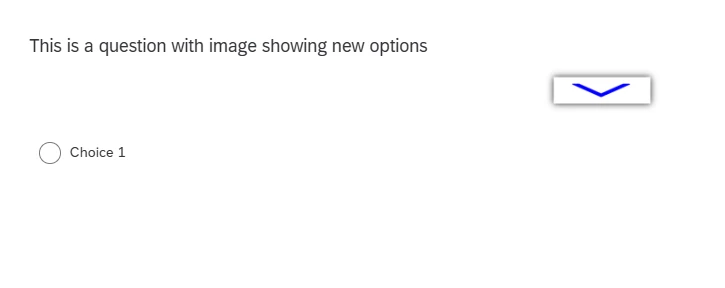
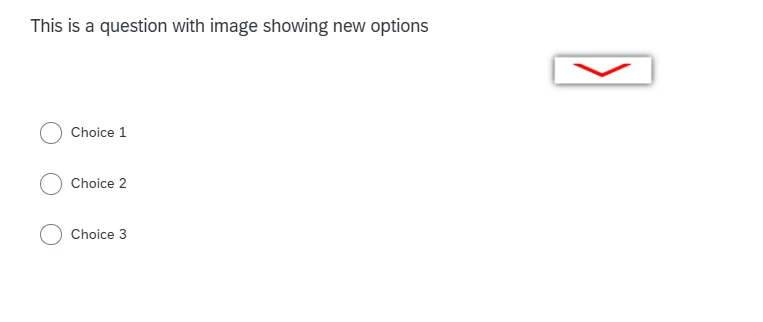
  1. an arrow button that enables new visible options to choose from
    • after clicking the arrow button, the image is changed and new options appear
    • technically, all options appear

    • This can be achieved by the following setup:

      • Question HTML

        This is a question with image showing new options
        <div style="text-align: right; position:relative; z-index:2; margin-bottom:12px;"><button class="toggle" style="background-color:white;
        border:none;
        padding:4px 8px;
        cursor:pointer;
        line-height:1;
        font-size:14px;
        color:#007BFF;" type="button"><img src="LINK TO THE DEFAULT IMAGE"></button></div>

        Link to the default image must be linked to your original image/chevron

      • Question Javascript

        Qualtrics.SurveyEngine.addOnload(function()
        {
        /*Place your JavaScript here to run when the page loads*/

        });

        Qualtrics.SurveyEngine.addOnReady(function() {

        var qContainer = this.getQuestionContainer();

        // Define which choices should be hidden/toggled
        // Uses 1-based indexes: [2, 3] = second and third choice
        var optionsToToggle = [2, 3];

        var choices = qContainer.querySelectorAll('.choices > .choice');

        // Initially hide specified choices
        optionsToToggle.forEach(function(index) {
        if (choices[index - 1]) {
        choices[index - 1].style.display = 'none';
        }
        });

        var button = qContainer.querySelector('button.toggle');

        if (button) {

        var toggleImage = button.querySelector('img');

        var collapsedImage =
        "LINK TO DEFAULT IMAGE";

        var expandedImage =
        "LINK TO EXPANDED IMAGE";

        button.addEventListener('click', function(event) {
        event.preventDefault();

        // Determine current state based on first configured choice
        var firstChoice = choices[optionsToToggle[0] - 1];
        var isExpanded = firstChoice &&
        firstChoice.style.display !== 'none';

        // Toggle specified choices
        optionsToToggle.forEach(function(index) {
        if (choices[index - 1]) {
        choices[index - 1].style.display =
        isExpanded ? 'none' : '';
        }
        });

        // Switch toggle image
        if (toggleImage) {
        toggleImage.src = isExpanded
        ? collapsedImage
        : expandedImage;
        }
        });
        }

        });


        Qualtrics.SurveyEngine.addOnUnload(function()
        {
        /*Place your JavaScript here to run when the page is unloaded*/

        });

        the important bit is the optionsToToggle - it defines what to hide initially. Then on click, all of them are shown

      • Question Javascript with automatic deselection on hiding (new survey experience)
         

        Qualtrics.SurveyEngine.addOnload(function()
        {
        /*Place your JavaScript here to run when the page loads*/

        });

        Qualtrics.SurveyEngine.addOnReady(function () {

        var question = this;
        var qContainer = this.getQuestionContainer();

        // 1-based visual positions to hide/toggle
        var optionsToToggle = [2, 3];

        var choiceElements =
        qContainer.querySelectorAll('.choices > .choice');

        // Actual Qualtrics choice IDs in displayed order
        var choiceIds = question.getChoices();

        function setChoiceVisibility(expanded) {

        optionsToToggle.forEach(function (index) {

        var arrayIndex = index - 1;
        var choiceElement = choiceElements[arrayIndex];
        var choiceId = choiceIds[arrayIndex];

        if (!choiceElement) {
        return;
        }

        if (!expanded) {

        /*
        * Clear Qualtrics' stored answer state using the
        * actual choice ID returned by getChoices().
        */
        if (choiceId !== undefined) {
        question.setChoiceValue(choiceId, false);
        }

        /*
        * Also reset the rendered input and visual state.
        */
        var inputs = choiceElement.querySelectorAll(
        'input[type="radio"], input[type="checkbox"]'
        );

        inputs.forEach(function (input) {
        input.checked = false;
        input.removeAttribute('checked');

        input.dispatchEvent(
        new Event('input', { bubbles: true })
        );

        input.dispatchEvent(
        new Event('change', { bubbles: true })
        );
        });

        choiceElement.classList.remove(
        'selected',
        'checked',
        'q-checked'
        );

        choiceElement.setAttribute('aria-checked', 'false');
        choiceElement.style.display = 'none';

        } else {
        choiceElement.style.display = '';
        }
        });
        }

        // Start collapsed
        setChoiceVisibility(false);

        var button = qContainer.querySelector('button.toggle');

        if (!button) {
        return;
        }

        var toggleImage = button.querySelector('img');

        var collapsedImage =
        'LINK TO DEFAULT IMAGE';

        var expandedImage =
        'LINK TO EXPANDED IMAGE';

        button.setAttribute('aria-expanded', 'false');

        button.addEventListener('click', function (event) {

        event.preventDefault();
        event.stopPropagation();

        var currentlyExpanded =
        button.getAttribute('aria-expanded') === 'true';

        var newExpandedState = !currentlyExpanded;

        setChoiceVisibility(newExpandedState);

        button.setAttribute(
        'aria-expanded',
        String(newExpandedState)
        );

        if (toggleImage) {
        toggleImage.src = newExpandedState
        ? expandedImage
        : collapsedImage;
        }
        });
        });


        Qualtrics.SurveyEngine.addOnUnload(function()
        {
        /*Place your JavaScript here to run when the page is unloaded*/

        });
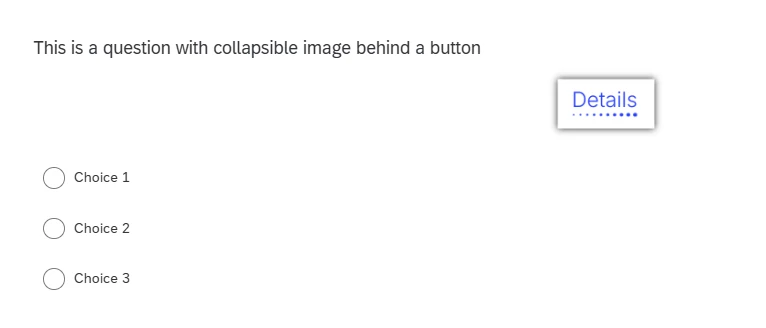
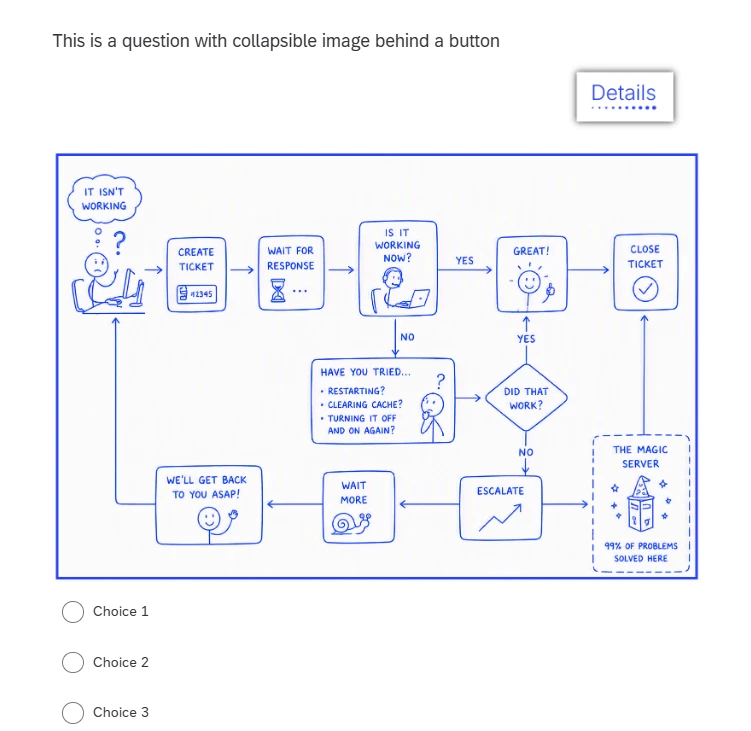
  2. If you don’t want to expand choices, but only to show more info (e.g. second image), it can be even simpler
    • Question with image button again


    • After clicking the button, a different image appears

    • Setup:
      • Question Text  HTML
        This is a question with collapsible image behind a button
        <div style="text-align: right; position:relative; z-index:2; margin-bottom:12px;"><button class="toggle" style="background-color: white;
        border: none;
        padding: 4px 8px;
        cursor: pointer;
        line-height:1;
        font-size: 14px;
        color: #007BFF;"><img src="LINK TO BUTTON IMAGE"></button></div>

        <div id="collapsibleToggle"><img src="LINK TO IMAGE SHOWN ON CLICK" style="width: 100%; height: auto; display:block;"></div>
      • Question Javascript
        Qualtrics.SurveyEngine.addOnload(function()
        {
        /*Place your JavaScript here to run when the page loads*/

        });

        Qualtrics.SurveyEngine.addOnReady(function() {
        var qContainer = this.getQuestionContainer();

        // Ensure collapsible content starts hidden
        var content = document.getElementById("collapsibleToggle");
        if (content) {
        content.style.display = "none";
        }

        // Toggle logic
        var button = qContainer.querySelector('button.toggle');
        if (button) {
        button.addEventListener("click", function() {
        content.style.display = (content.style.display === "none" || content.style.display === "") ? "block" : "none";
        });
        }

        var textarea = qContainer.querySelector('textarea');

        if (textarea) {
        textarea.style.overflowY = 'hidden';
        textarea.style.resize = 'none'; // optional
        function resize() {
        textarea.style.height = 'auto';
        textarea.style.height = textarea.scrollHeight + 'px';
        }
        textarea.addEventListener('input', resize);
        resize();
        }
        });


        Qualtrics.SurveyEngine.addOnUnload(function()
        {
        /*Place your JavaScript here to run when the page is unloaded*/

        });

        Just shows the hidden area with the second image.


Let me know if you need further details on any of those.