Hello,
For my survey, I am giving survey-takers a set amount of time to view an image. The image is a large poster which I would like viewers to be able to zoom in on. I have searched extensively on Qualtrics community to find a solution to this, but unfortunately with my inability to code using JavaScript/HTML/CSS, I cannot find a solution that I am able to make work.
Based on my searches, I have two options, both of which have a major issue:
Option 1: Use the code provided by w.patrick.gale in the following link: https://jsfiddle.net/Taqi_Shah/0zshgg1a/ which allows for a very cool mouseover/hover option. <-- ideal option
Problem: I cannot figure out how to apply the code to my survey. I have learned that I need both a small and large image, and I have tried pasting the code into the JavaScript editor of my image. However, I do not know how the HTML applies - do I need to use descriptive text to be able to code in both images??
Solution: If someone is willing and able, I would need assistance to be walked through this. Again, I do not know how to code on this platform - the only coding experience I have is for stats in R, which as you may know is unrelated to web design/functions.
Option 2: Insert the image through rich text editor as a file, which will open in a new tab to allow for zoom.
Problem: The image is no longer timed.
Solution: If someone knows of a way to force the image opened in the new tab to close over the timer is out, instructions or a walkthrough on how to do that.
Finally, my last problem is that I need to figure this out as soon as possible. I am developing this survey for my masters project, and my deadline to finish the survey is about now. This is my last issue with the survey! If anyone knows the solution to this problem, it would be incredibly appreciated - thank you!!

Options for ability to zoom in on a large detailed image?
Best answer by Tom_1842
Hi
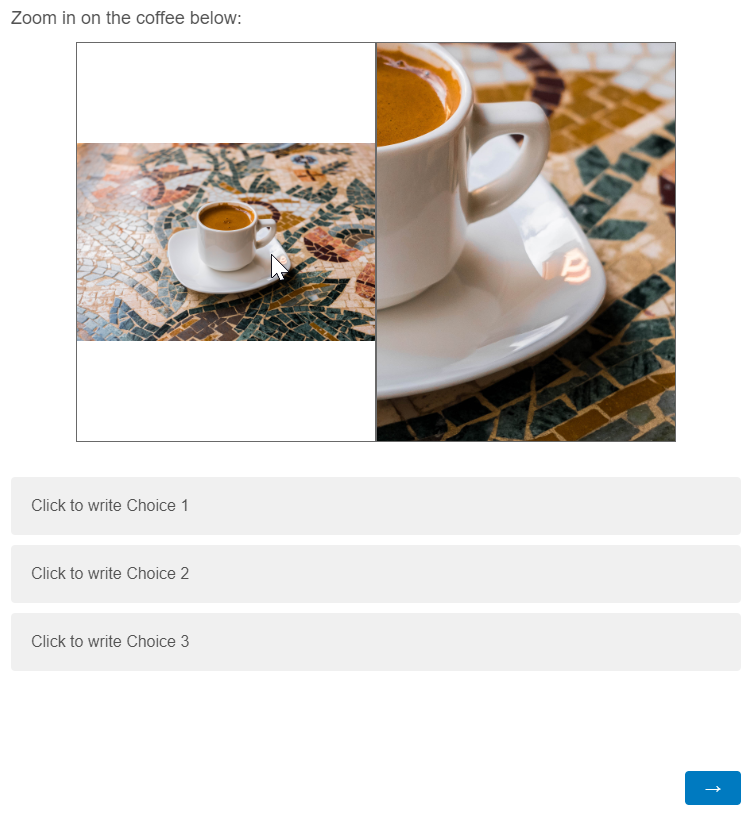
To give it a try, first create a question in the survey Builder. Using the Rich Content Editor's HTML/Source view "<>", update the Question Text with the below:
Zoom in on the coffee below:
<br>
<div class="wrapper">
<div class="left">
<img src="https://raw.githubusercontent.com/ivanmmarkovic/misc/master/images/large/beverage-caffeine-cappuccino-1660916.jpg">
</div>
<div class="right">
<div id="inner" class="inner">
<img src="https://raw.githubusercontent.com/ivanmmarkovic/misc/master/images/large/beverage-caffeine-cappuccino-1660916.jpg">
</div>
</div>
</div>
Next, add the below to the question's JavaScript in the OnReady section:
const inner = document.getElementById("inner");
const left = document.querySelector(".left");
left.addEventListener("mousemove", handleMousemove, false);
function handleMousemove(event) {
 let { width, height } = this.getBoundingClientRect();
 let xAxis = Math.round(event.offsetX / width * 100);
 let yAxis = Math.round(event.offsetY / height * 100);
 jQuery(inner).css({"transform":"translate(-"+xAxis+"%,-"+yAxis+"%)"});
}
Finally, add the below CSS to the Style section of the survey's Look & Feel:
* {
 box-sizing: border-box;
 margin: 0;
 padding: 0;
}

.wrapper {
 display: flex;
 height: 100vh;
 width: 600px;
 height: 400px;
 margin: 10px auto;
}

.left,
.right {
 flex: 1 1 auto;
 border: 1px solid dimgray;
 max-width: 50%;
}

.left {
 display: flex;
 justify-content: center;
 align-items: center;
}

.left > img {
 width: 100%;
 height: auto;
 pointer-events: none;
}

.right {
 position: relative;
 overflow: hidden;
}

.inner {
 position: absolute;
 width: 400%;
 height: 400%;
 left: 50%;
 top: 50%;
 transform: translate(-50%, -50%);
 display: flex;
 justify-content: center;
 align-items: center;
}
.inner > img {
 width: 100%;
 height: auto;
}
Also, though you'd have to add some pieces to get it to work with a Timer, Lightbox is a useful library for enlarging pictures. There is an example here.



 To give it a try, first create a question in the survey Builder. Using the Rich Content Editor's HTML/Source view "<>", update the Question Text with the below:


Sign up
Already have an account? Login

Welcome! To join the Qualtrics Experience Community, log in with your existing Qualtrics credentials below.
Confirm your username, share a bit about yourself, Once your account has been approved by our admins then you're ready to explore and connect .
Free trial account? No problem. Log in with your trial credentials to join.
No free trial account? No problem! Register here
Already a member? Hi and welcome back! We're glad you're here 🙂
You will see the Qualtrics login page briefly before being taken to the Experience Community
Login with Qualtrics
Welcome! To join the Qualtrics Experience Community, log in with your existing Qualtrics credentials below.
Confirm your username, share a bit about yourself, Once your account has been approved by our admins then you're ready to explore and connect .
Free trial account? No problem. Log in with your trial credentials to join. No free trial account? No problem! Register here
Already a member? Hi and welcome back! We're glad you're here 🙂
You will see the Qualtrics login page briefly before being taken to the Experience Community
Login to the Community
Welcome! To join the Qualtrics Experience Community, log in with your existing Qualtrics credentials below.
Confirm your username, share a bit about yourself, Once your account has been approved by our admins then you're ready to explore and connect .
Free trial account? No problem. Log in with your trial credentials to join.
No free trial account? No problem! Register here
Already a member? Hi and welcome back! We're glad you're here 🙂
You will see the Qualtrics login page briefly before being taken to the Experience Community
Login with Qualtrics
Welcome! To join the Qualtrics Experience Community, log in with your existing Qualtrics credentials below.
Confirm your username, share a bit about yourself, Once your account has been approved by our admins then you're ready to explore and connect .
Free trial account? No problem. Log in with your trial credentials to join. No free trial account? No problem! Register here
Already a member? Hi and welcome back! We're glad you're here 🙂
You will see the Qualtrics login page briefly before being taken to the Experience Community
Enter your E-mail address. We'll send you an e-mail with instructions to reset your password.