

Automatically opt out a respondents upon completing a survey | Experience Community
Skip to main content
Solved

Automatically opt out a respondents upon completing a survey

  • February 5, 2026
  • 4 replies
  • 41 views

Forum|alt.badge.img+3

Hello,

I’m working on a survey project using a generic link (anonymous) + authentication. The reason for this is easier promotion of the survey while still being able to track respondent background information and use it in reporting.

For a generic link, a reminder would go to everyone in the contact list regardless they have completed the survey or not. To avoid this, I used to be able to set up a trigger so that anyone who has completed the survey would be automatically opt out from the list. When I send a reminder to the same contact list, those who have completed the survey wouldn’t receive it which is perfect.

Now Qualtrics has updated the software. The functionalities have changed and I couldn’t see the historic set-up or figure out how to set the trigger up again this time. I thought the survey workflow could be used to achieve this. I tried to pipe in the metadata field “Finished” (1 is finished, 0 is not finished) and use it to change the subscription status. But I don’t know whether it can be done that way or how to pipe the values of the field.

Any suggestion would be highly appreciated. By the way, we plan to launch the survey next week...

Best answer by Anushree R

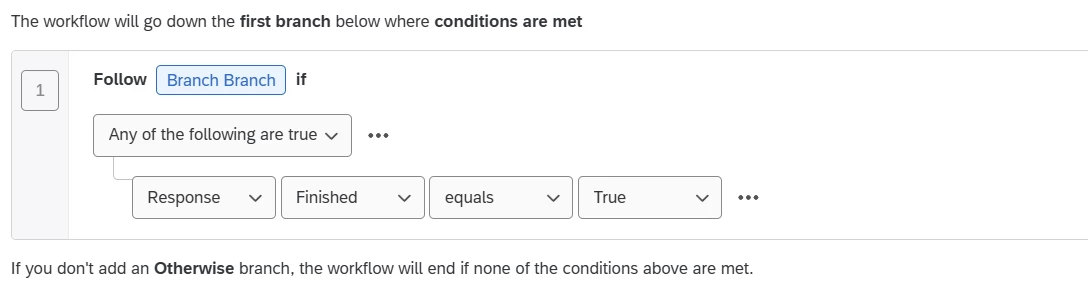
Hi ​@guzman_r105 , Add a workflow in survey workflows tab. The workflow should be triggered when a survey response is recorded. Now, add a decision as Response Finished equals True. Then add the XM Directory task » select add to XM directory » Map the primary fields and check the unsubscribe box. This will opt-out the participant from the mailing list.


The condition to be configured is Response » Finished » True as shown in below image.


Hope this helps! :)

4 replies

Forum|alt.badge.img+2
  • Level 2 ●●
  • Answer
  • February 6, 2026

Hi ​@guzman_r105 , Add a workflow in survey workflows tab. The workflow should be triggered when a survey response is recorded. Now, add a decision as Response Finished equals True. Then add the XM Directory task » select add to XM directory » Map the primary fields and check the unsubscribe box. This will opt-out the participant from the mailing list.


The condition to be configured is Response » Finished » True as shown in below image.


Hope this helps! :)


Forum|alt.badge.img+3
  • Author
  • Level 1 ●
  • February 9, 2026

Hi Anushree, I did a test during the weekend, and it worked. However, this morning I tried again, it didn’t opt out completed respondents. Anything I might have missed?


Forum|alt.badge.img+2
  • Level 2 ●●
  • February 10, 2026

Hi ​@guzman_r105 , please check the workflow run history. If the workflow ran successfully, then check for XMD task details, if it unsubscribed the respondent.


XMD task will opt-out the respondent from directory. There is a possibility that the respondent is added into another contact list for some other survey where the respondent is opted in again. So, instead of XMD task, you can configure the trigger that you were using earlier or configure the API that I have shared below.


Configure this api.qualtrics.com/fc43c25b3f3c3-create-contact-in-mailing-list API, to opt-out the respondent from a particular mailing list. Here in this API, you have to enter basic details like email, external data reference, directory id, mailing list id, API token and set unsubscribed as true. If default, unsubscribe is false, so set the value as true to opt-out the respondent from specific mailing list.

Note: This API has a limit of 500 calls per min.


Forum|alt.badge.img+3
  • Author
  • Level 1 ●
  • February 11, 2026

Hi ​@Anushree R , thank you for the additional information. I realized the reason why it failed to update the subscription was because it didn’t find the correct directory (I saw it from run history). For some reason, the matching field wasn’t piped in correctly. So I edited the piped matching field (email in my case) and it worked. I’m interested in learning how to configure API though, so I will look into it. Thanks again!