
Scaling and alignment of graphics | Experience Community
Skip to main content
Question

Scaling and alignment of graphics

  • February 12, 2026
  • 3 replies
  • 43 views

Forum|alt.badge.img+1

Newbie here…

I have a matrix table question of bipolar type with one statement and 9 scale points. The scale points have no text but there are 5 graphics. Graphics are attached to scale points 1, 3, 5, 7, and 9. Each graphic is 141 px W x 174 px H. My understanding is that Qualtrics fits the graphics into the standard width of the output screen, which renders as below.  

The graphics have been scaled down to approximately 55% of original size so they fit, and pixelation now makes it difficult to distinguish between them. I then added in Look and Feel > Style > Custom CSS:

img { 
max-width: 200% !important; 
}

With this change the screen renders as below. 
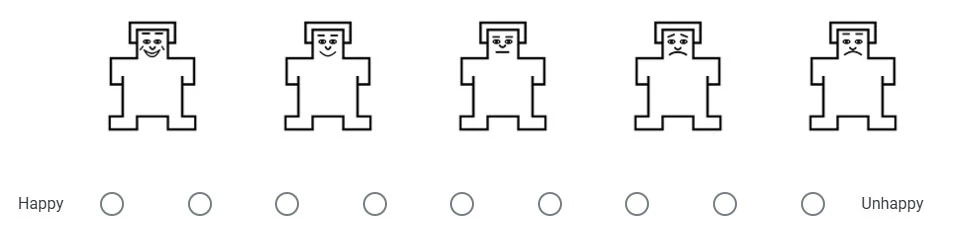
The graphics have been scaled up to approximately 110% of original size. They have also been shifted to the right. A right-shift was also present in the first rendering, but it is small enough to be acceptable.

So my question is: How can Qualtrics be controlled to render graphics at an acceptable (preferably controllable) size and be aligned with the radio buttons?

Any assistance gratefully received. 

3 replies

Forum|alt.badge.img

Hi ​@David0,

Welcome to the Community!

I noticed that you’re controlling the graphic size using Custom CSS. Any size configured at the question level will be overridden by the dimensions defined in the theme-level Custom CSS applied across the survey. Please make sure to visually check the resolution on both Desktop and Mobile devices before finalizing it. There is no fixed size, as it may vary depending on the requirement, such as Portrait or Landscape orientation.

You can find more on Insert Graphic & Insert a Graphic


Lpena
Qualtrics Employee
Forum|alt.badge.img+3
  • Qualtrics Employee
  • February 19, 2026

Hi David, it sounds like you're running into some of the common limitations with how Qualtrics handles graphic alignment in matrix tables. Since the platform tends to auto-scale images to fit the screen, it often leads to that annoying pixelation or radio buttons that just won't line up properly.

One of the most reliable ways to handle this is to resize your images to the exact dimensions you want before you even upload them to your Library. This keeps the survey from trying to "guess" the size. You can also hop into the Rich Content Editor for each individual graphic and manually set the height and width properties there.

If you're using CSS, try to avoid broad rules like max-width: 200% because that usually pushes things off-center or creates that right-shifting layout issue you noticed. Instead, try targeting specific image classes and adjusting the padding or margins to nudge them into place. Sometimes just tweaking the spacing in the Look & Feel menu can help close that gap between the image and the button.

If those tweaks don't do the trick and things still look broken, it might be a bug or a specific layout conflict. In case, I’d suggest logging into your account and heading over to the Support Hub to get a technical expert to take a look at your specific Themes section: https://support-portal.qualtrics.com/ 🎨


Forum|alt.badge.img+1
  • Author
  • February 20, 2026

Thanks nikamshubham73.

Thanks  Lpena.

I resized the images before upload, but guessed what might be a suitable image width. How can I see, and change, the settings in the image classes that you refer to? How can I find information about the default (CSS?) classes and what they are applied to? .